
Lorem ipsum dolor sit amet, consectetur adipiscing elit. Ut elit tellus, luctus nec ullamcorper mattis, pulvinar dapibus leo.
10 Essential AirPods Hacks Every User Should Know
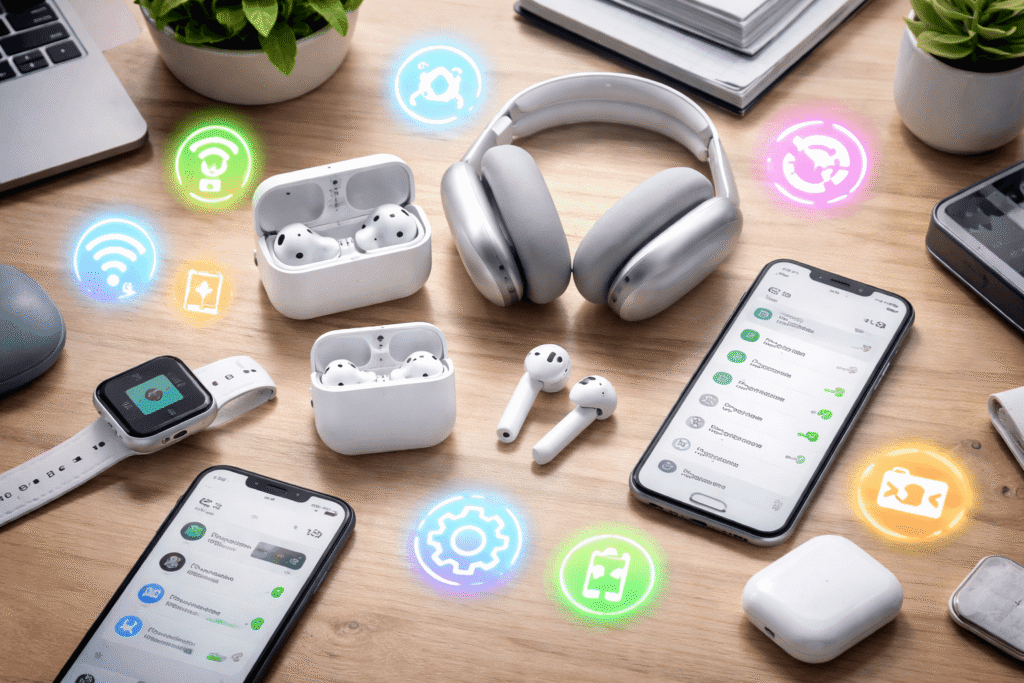
Since their debut in 2016, Apple’s AirPods have evolved from simple wireless earbuds into powerful, feature-packed audio devices. Whether you own the standard AirPods, AirPods Pro, or AirPods Max, most users only scratch the surface of what these headphones can do. Beyond just playing music, they can improve productivity, assist with hearing, and even help bridge language barriers.
Here are 10 essential hacks that will help you unlock the full potential of your AirPods.
1. Optimize Noise Modes to Save Battery
AirPods Pro and Max come with three noise modes: Noise Cancellation, Transparency, and Off. While Noise Cancellation blocks outside sounds and Transparency lets them in, the “Off” mode disables both, saving battery while still allowing you to hear some ambient noise.
To enable it from the AirPods stem (or noise control button on Max), go to Settings → Press and Hold AirPods → choose Left or Right → select “Off”. Now you can rotate through all three modes easily.
2. Locate Lost AirPods with “Find My”
Small and wireless, AirPods are easy to misplace. Apple’s Find My app makes it fast and simple to locate them:
- Devices Tab: Shows the last known location of your AirPods.
- Step-by-Step Guidance: Some AirPods models even give an arrow pointing toward them.
- Play Sound: Trigger a tone from either the AirPods or, for newer models, even the case itself.
This tool saves time and prevents endless searching under couch cushions.
3. Pair AirPods with Non-Apple Devices
While AirPods are optimized for Apple products, they can work with any Bluetooth-enabled device:
- AirPods 1–3 / Pro 1–2: Open the case, hold the back button until the light flashes white.
- AirPods 4 / Pro 3: Place the case near the device, double-tap the front, and watch for the flashing light.
- AirPods Max: Hold the noise control button for five seconds until it flashes white.
This opens the door to using AirPods with Android phones, PCs, or even gaming consoles.
4. Turn AirPods into Live Translators
AirPods Pro 2, Pro 3, and AirPods 4 can translate conversations in real time. To use Live Translation:
- Download the target language via Settings → Translation (Beta) → Languages.
- Press both AirPods stems to activate translation, or use the Translate app → Live.
Supported languages include English, French, Spanish, Japanese, Korean, Portuguese, Mandarin (Simplified and Traditional), and more. This turns your earbuds into a portable translator.
5. Use AirPods as Hearing Aids
Apple has FDA-cleared certain AirPods as clinical-grade hearing aids (Pro 2 and Pro 3). You can:
- Take a hearing test via iPhone or upload an audiogram from an audiologist.
- Enable Hearing Assistance in AirPods settings.
This feature provides amplification for environmental sounds, helping those with mild hearing loss without buying dedicated devices.
6. Customize Adaptive Audio Levels
Adaptive Audio automatically adjusts external sound levels while letting you stay aware of your surroundings. If you prefer more control:
- Go to Settings → Adaptive Audio.
- Slide left to block more sound or right to allow more ambient noise.
This is perfect for balancing music immersion with situational awareness.
7. Use AirPods as a Camera Remote
For hands-free photography or videography, AirPods can trigger your iPhone camera:
- Go to Settings → Camera Remote.
- Choose Press Once for a quick shot or Press and Hold for a longer press.
This is ideal for group photos or recording without touching your phone.
8. Stop Automatic Volume Adjustments
AirPods’ Personalized Volume automatically changes sound levels based on surrounding noise. While smart, it can be annoying. To disable:
- Open Settings → Audio → Personalized Volume → toggle off.
You regain full manual control of your listening experience.
9. Master Stem Controls for Calls
AirPods can handle calls without touching your phone:
- Single Press: Answer or mute/unmute.
- Double Press: End the call.
- Customize these via Settings → Call Controls.
This makes your AirPods function as a fully featured Bluetooth headset.
10. Control AirPods with Head Gestures
Hands full? AirPods 4 and Pro 2/3 support Head Gestures:
- Nod to accept calls or shake to decline.
- Enable via Settings → Head Gestures (ensure Announce Calls/Notifications is on).
This advanced feature leverages sensors to make your AirPods even smarter.
AirPods are more than just wireless earbuds—they’re tools for productivity, accessibility, and convenience. Mastering these hacks will not only make your listening experience smoother but also help you extract every ounce of utility from your Apple headphones.