
10 Smart Gmail Hacks Every User Should Know (2026 Guide)

Introduction
If your Gmail inbox looks like a digital jungle — thousands of unread messages, endless promotions, and newsletters you never read — you’re not alone. Most Gmail users struggle to manage the constant flood of emails.
But here’s the good news: you don’t need fancy extensions or paid apps to get your inbox back under control. With a few smart Gmail hacks, you can organize everything, stay focused, and save precious time every day.
Here are 10 essential Gmail hacks that will completely change the way you handle email.
1. Use Gmail Filters Like a Pro
Filters are Gmail’s built-in automation tools — and they’re powerful. You can automatically delete, label, or archive emails based on sender, subject, or keywords.
Quick setup guide:
- Open Gmail on desktop.
- Select an unwanted email → click the three dots → Filter messages like these.
- Choose actions such as Delete it, Skip Inbox, or Mark as read.
- Tick Also apply filter to matching conversations.
- Click Create filter.
Now, those types of emails will never appear in your inbox again.
2. Unsubscribe From What You Don’t Read
Start by cutting off the biggest source of inbox clutter — subscriptions.
Promotional newsletters and “weekly updates” quickly pile up, making it harder to see what’s important.
How to fix it:
- Open Gmail’s Promotions tab and manually click Unsubscribe on unwanted emails.
- Move your favorite newsletters to a secondary email address or a read-later app like Readwise Reader.
- Gmail often shows an Unsubscribe link beside the sender’s address — use it frequently.
This one habit can instantly declutter your inbox by 30–40%.
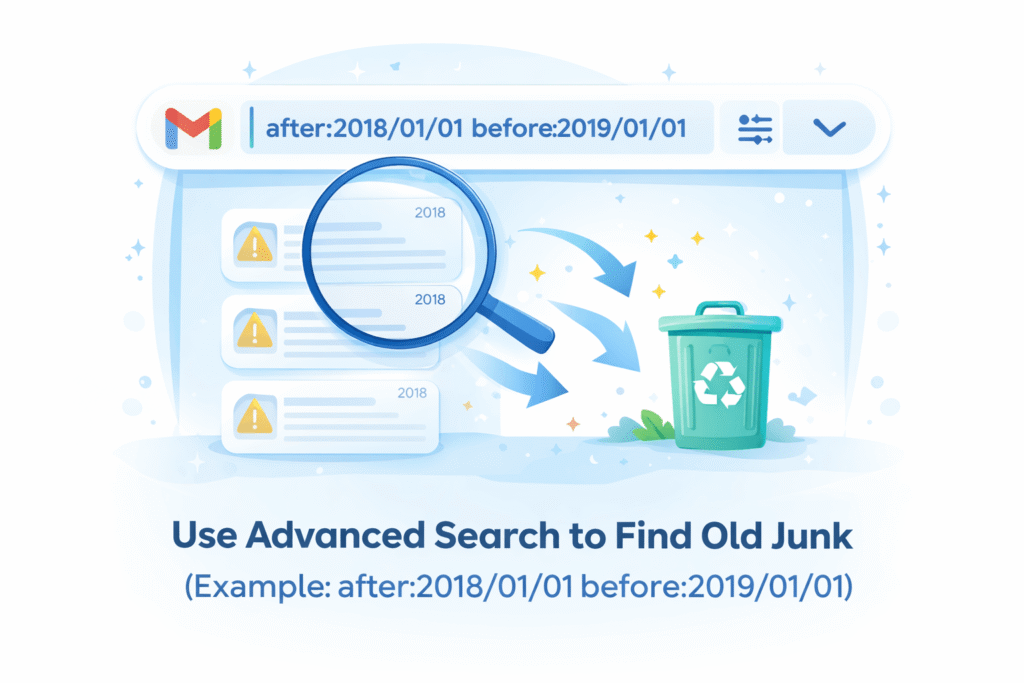
3. Use Advanced Search to Find Old Junk
f your inbox is filled with years of old messages, Gmail’s Advanced Search can find and remove them quickly.
Click the slider icon on the search bar to open the menu, or use commands like:
after:2018/01/01 before:2019/01/01 This shows every email from 2018.
Delete them in bulk to keep your inbox light and searchable.
4. Find and Delete Large Emails
Gmail storage fills up faster than you think — and attachments are often to blame.
In the search bar, type:
size:20m This command finds all emails larger than 20MB. Replace “20” with “10” or “5” to adjust.
Delete what you no longer need, or download important attachments before clearing them. It’s the easiest way to free up space instantly.
5. Train Gmail to Recognize Important Emails
Teach Gmail what matters to you. Next to each email, click the yellow arrow icon (the importance marker). Gmail’s AI learns your preferences and prioritizes similar messages.
Over time, this helps Gmail automatically sort out the noise and surface your real priorities.
6. Stop Spam at the Source
Instead of constantly filtering spam, prevent it from being sent.
Visit the notification settings of social media platforms like Facebook, Instagram, and LinkedIn. Turn off promotional or “activity update” emails.
If spam still slips through, click Gmail’s Unsubscribe or Block sender options. This keeps junk out before it reaches your eyes.
7. Use Gmail’s Built-in Cleanup Tool
Google provides an official cleanup option that’s fast and safe.
Visit Google Storage Cleanup → click Clean up space.
Gmail will automatically identify large attachments, old files, and spam-heavy categories you can delete in one click.
8. Empty Spam and Trash Regularly
Emails in your Spam and Trash folders still occupy space.
To truly free up storage:
- Open Spam and Trash folders.
- Click Select all → Delete forever.
Do this once a month to keep your Gmail light. Remember: once deleted from these folders, messages cannot be recovered.
9. Try Trusted Tools — But Choose Wisely
If your inbox is already out of control, third-party tools like SaneBox can help. It automatically categorizes low-priority emails and highlights important ones.
SaneBox is verified by Google and Leviathan Security Group, and offers a 14-day free trial. Still, always review any app’s privacy policy before giving access to your inbox.
10. Turn Emails Into To-Do Tasks
Some emails need action, not archiving.
Click Add to Tasks (checkmark icon) at the top of an open email. This sends the message to Google Tasks, turning it into a to-do item you can track.
This method keeps your inbox clear and helps you stay organized.
Final Thoughts
Some emails need action, not archiving.
Click Add to Tasks (checkmark icon) at the top of an open email. This sends the message to Google Tasks, turning it into a to-do item you can track.
This method keeps your inbox clear and helps you stay organized.Gmail is more than a mailbox — it’s a productivity tool. By combining filters, smart search commands, and better inbox habits, you can save hours each week and never lose an important message again.
So, take 10 minutes today to apply these hacks — and finally enjoy the calm of an organized inbox.