
How to Use Claude AI to Instantly Add Multiple Events to Your Calendar
Save hours by turning any event list into a digital calendar file—automatically.
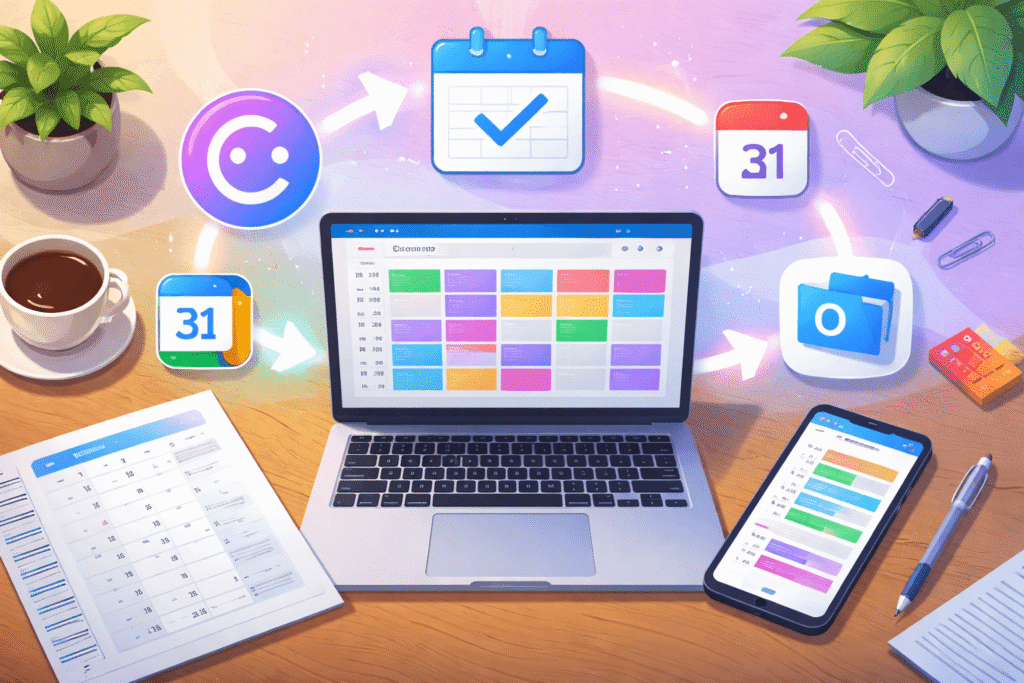
If you live by your calendar, you know how frustrating it can be to receive a long list of event dates—on paper, in an email, or inside a PDF. Typing every single one into your digital calendar isn’t just boring; it wastes valuable time.
That’s where Claude comes in. The latest version of Claude can now generate iCal (.ics) files automatically, even from a photo or screenshot. These files can then be imported directly into Google Calendar, Apple Calendar, or Microsoft Outlook—instantly adding all your appointments at once.
How Claude Creates Custom iCal Files
Here’s how it works in practice:
- Take a photo or screenshot of your schedule—whether it’s a printed meeting list, an event program, or a sports fixture.
- Upload it to Claude and simply say: “Create an iCal file for these events.”
- Claude analyzes the content and produces a downloadable .ics file containing all the events with times, dates, and descriptions.
For example, if you wanted to add all the men’s hockey games from the Olympic Games to your calendar, Claude could generate the file in seconds. The same process works for conference schedules, school timetables, or even exam rosters.
Tip: Always check that the time zone is correct. Claude usually detects it automatically if it appears in the text (like “EST” or “GMT+1”), but mentioning it in your request ensures accuracy.
Importing the iCal File Into Your Calendar
On Apple Calendar (macOS or iPhone):
- Open the .ics file directly.
- The Calendar app will prompt you to select which calendar to add it to.
- Confirm, and all events will appear instantly.
On Google Calendar:
- Go to Settings → Import & Export.
- Choose Select file from your computer and upload the .ics file from Claude.
- Pick the calendar you want to add it to, then click Import.
On Microsoft Outlook:
- Go to File → Open & Export → Import/Export.
- Select Import an iCalendar (.ics) or vCalendar (.vcs) file.
- Choose your file and confirm which calendar to update.
That’s it—your events are now synced across devices.
Why This Matters
Claude’s iCal automation is a powerful example of how AI is simplifying everyday productivity tasks. Instead of manually entering dozens of appointments, you can now convert a single list into a fully organized digital schedule—saving time, avoiding errors, and keeping everything in one place.
For anyone who juggles multiple meetings, projects, or events, this feature is a quiet game-changer. It bridges the gap between handwritten schedules and modern digital organization, turning messy lists into structured, actionable time management tools.