
10 Apple Maps Hacks That Actually Make Navigation Smarter
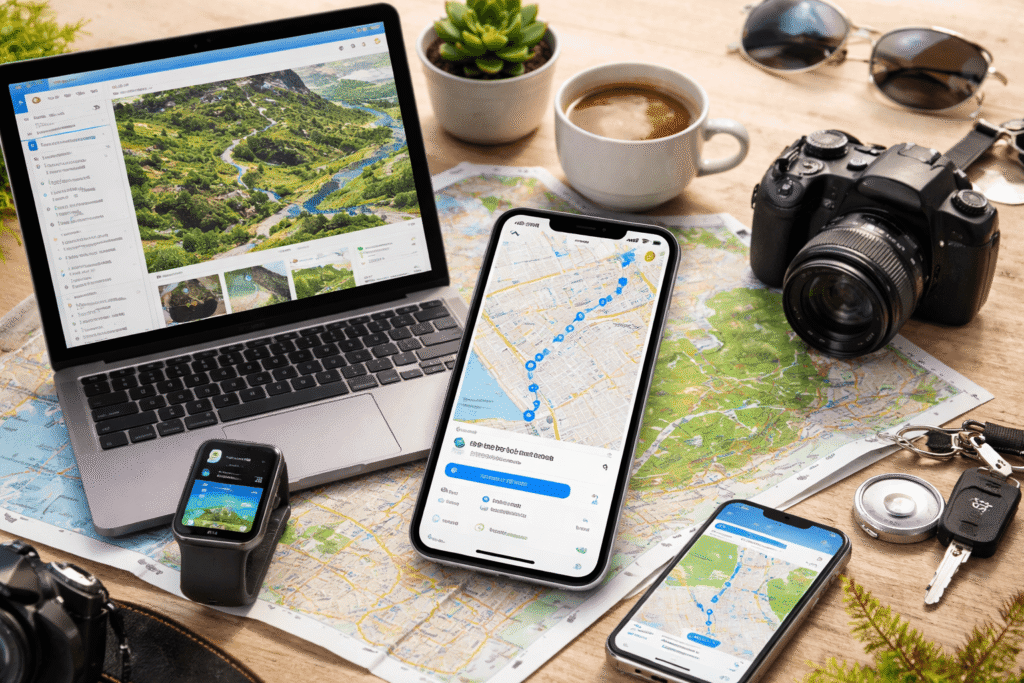
For a long time, Apple Maps lived in the shadow of competitors. But that reputation is outdated. Over the years, Apple has quietly rebuilt the app into a powerful navigation tool packed with smart features most users never touch.
If you only use it to get from point A to B, you’re missing out. These lesser-known features can make your navigation faster, more personalized, and far more efficient.
1. Download Maps for Offline Use
No internet? No problem.
Apple Maps lets you download entire areas for offline navigation. That means you still get directions, estimated arrival times, and place information even without data.
To use it:
- Drop a pin anywhere
- Tap Download
- Select the area you want saved
This is essential for travel, poor network zones, or just saving data.
2. Set Your Preferred Travel Mode
If you always walk, cycle, or use public transport, stop letting Maps default to driving.
You can set your preferred travel type so routes and ETAs are tailored to how you actually move.
Go to:
Settings → Maps → Preferred Type of Travel
It saves time and removes unnecessary clutter every time you search.
3. Avoid Routes That Don’t Suit You
Not all “fastest routes” are actually ideal.
Apple Maps allows you to avoid:
- Highways
- Toll roads
- Busy streets
- Hills (for cycling)
- Stairs (for walking)
Just toggle these options in the directions panel before starting your trip. It’s a small tweak that can completely change your experience.
4. Save Your Parking Location Automatically
Forgetting where you parked is more common than people admit.
Apple Maps can automatically drop a pin showing your parked car location when you disconnect from Bluetooth or CarPlay.
Once enabled, you can quickly find your car later under “Parked Car” in the app.
5. Create and Share Custom Guides
Planning a trip or curating your favorite spots?
You can create Guides—collections of saved places like restaurants, hangout spots, or travel itineraries—and share them with others.
Perfect for:
- Group trips
- Content creators
- Personal organization
It turns Maps into a lightweight planning tool, not just navigation.
6. Track Places You’ve Visited Automatically
The Visited Places feature quietly logs locations you’ve been to—even if you didn’t use Maps to get there.
This is useful for:
- Remembering places you forgot to save
- Reviewing travel history
- Discovering patterns in your movement
The data is encrypted and private, and you can turn it off anytime.
7. Create Your Own Routes
You’re not limited to pre-built directions.
Apple Maps allows you to design custom routes by selecting multiple points on the map. You can create:
- Walking tours
- Running paths
- Scenic drives
Once saved, you can reuse them anytime.
8. Send Directions from Mac to iPhone Instantly
Planning on a bigger screen is easier—but navigating happens on your phone.
With Apple’s ecosystem, you can send directions from your Mac directly to your iPhone. Just click Share → Send to iPhone, and it appears instantly.
Alternatively, use Handoff to continue seamlessly between devices.
9. Explore Hiking Trails and Outdoor Routes
Apple Maps includes detailed topographical data and hiking routes (in supported regions).
You can:
- Search for trails
- Filter by distance or elevation
- Download routes for offline use
It’s not a full outdoor app, but it’s surprisingly capable for casual exploration.
10. Compare Ride Prices Without Leaving the App
Instead of jumping between apps, Apple Maps lets you compare ride options from services like Uber and Lyft directly inside the app.
You’ll see:
- Estimated prices
- Wait times
- Available ride types
Once you choose, it redirects you to complete the booking.
Final Thought
Most people underestimate Apple Maps because of its early flaws. That’s a mistake.
Today, it’s not just a navigation tool—it’s a smart assistant for travel, planning, and everyday movement. The difference comes down to whether you use its full capabilities or just the basics.
Use these features properly, and you’ll stop seeing it as “just another maps app.”