
5 Smart Apple CarPlay Hacks That Make Every Drive Easier Part 1
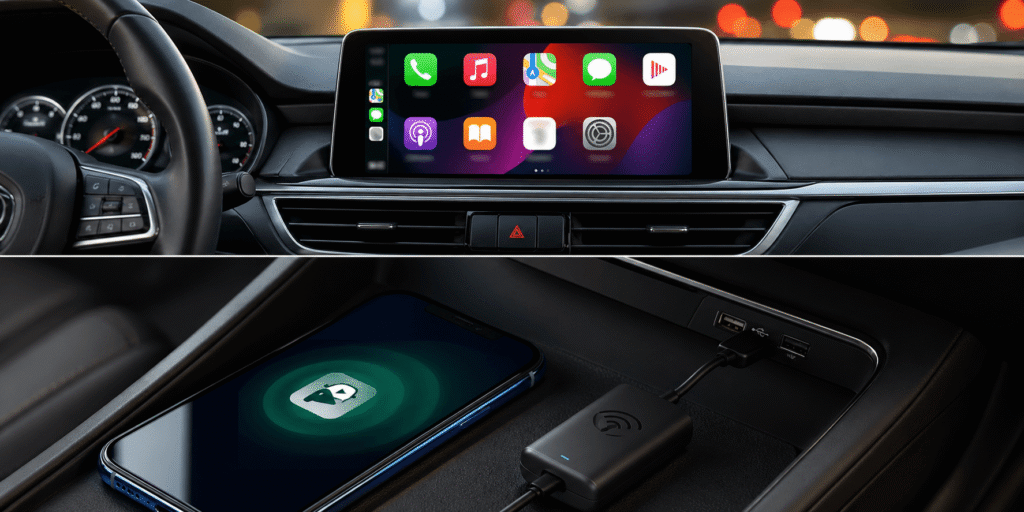
Apple CarPlay is designed to bring your iPhone experience into your car—but most users barely scratch the surface of what it can actually do.
If you’re only using it for maps and music, you’re leaving a lot of efficiency and convenience on the table. These five practical tweaks will help you reduce distractions, save time, and make your driving experience significantly smoother.
1. Customize Your CarPlay Dashboard for Faster Access
Most people waste time scrolling through unnecessary apps while driving. That’s inefficient—and unsafe.
Instead, reorganize your CarPlay apps so only the essentials are front and center.
How to do it:
- Go to Settings → General → CarPlay → Your Vehicle → Apps
- Drag apps to reorder them
- Remove apps you don’t use
This reduces decision-making time while driving. Less clutter = faster interaction.
2. Use Voice Control for True Hands-Free Operation
Touching your screen while driving—even briefly—is a risk. That’s where Voice Control becomes valuable.
Unlike basic voice assistants, Voice Control lets you:
- Open apps
- Navigate menus
- Control music
- Execute multiple commands in sequence
Enable it here:
- Settings → Accessibility → Voice Control
Once active, you can operate CarPlay almost entirely without touching the screen.
3. Turn On “Announce Notifications” to Hear Messages
Reading messages while driving is a bad idea. Ignoring them completely isn’t always practical either.
This feature solves both problems.
With Siri, your messages are read aloud, and you can reply using your voice.
Set it up:
- Settings → Notifications → Announce Notifications → CarPlay
You can also choose which apps are allowed—so you’re not overwhelmed with unnecessary alerts.
4. Enable Driving Focus to Eliminate Distractions
Notifications are one of the biggest causes of distracted driving.
Driving Focus automatically limits interruptions while you’re on the road.
What it does:
- Silences non-essential notifications
- Allows priority contacts through
- Sends auto-replies to incoming messages
Activate it:
- Settings → Focus → Driving
You can even set it to turn on automatically when CarPlay connects. That’s how it should be used.
5. Add Widgets for Quick Glance Information
With newer iOS updates, CarPlay now supports widgets—small info panels that show useful data instantly.
Instead of opening apps, you can quickly view:
- Weather updates
- Calendar events
- Reminders
- Sports scores
To customize:
- Settings → General → CarPlay → Widgets
This reduces interaction time and keeps your attention where it belongs—on the road.
Final Thought
Most people use CarPlay passively. That’s the mistake.
Once you start treating it like a system you can optimize—not just use—you eliminate friction, reduce distractions, and make driving more efficient.