
Hacks Every Google Maps User Should Know
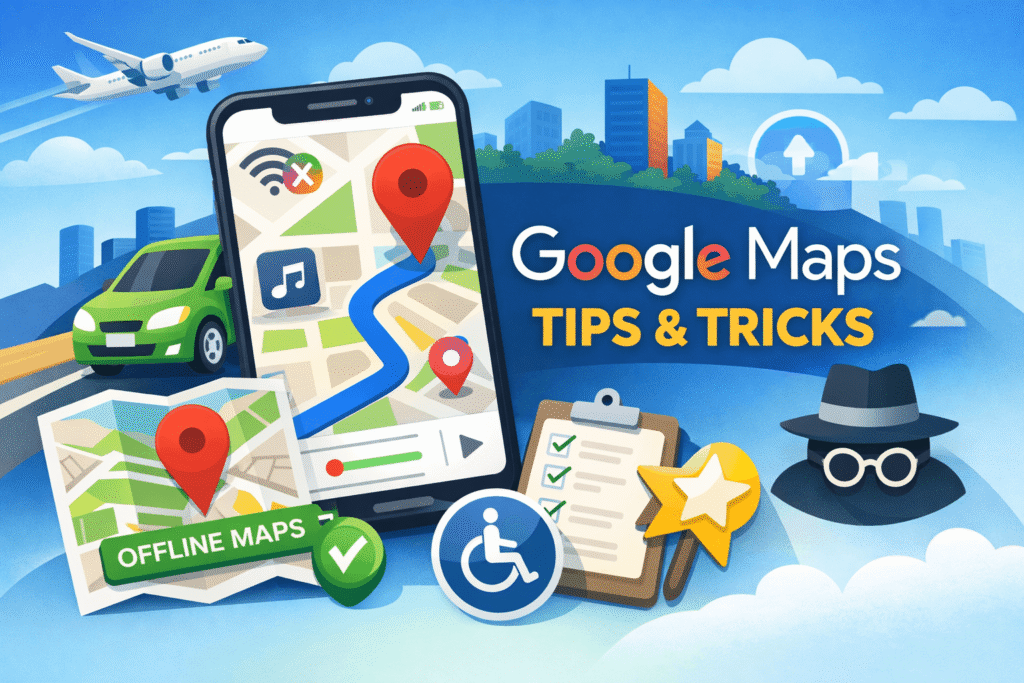
Google Maps isn’t just a navigation app — it’s a travel tool, local guide, and safety companion rolled into one. Whether you’re planning a trip, commuting daily, or exploring a new city, these Google Maps hacks will help you travel smarter, faster, and safer.
1. Always Double-Check Route Settings
Before hitting the road, verify your route settings. Google Maps sometimes changes preferences automatically — and that can reroute you without notice.
- Tap Profile → Settings → Navigation → Route options.
- Review the options: Avoid tolls, Avoid highways, Avoid ferries, and Prefer fuel-efficient routes.
For unfamiliar areas, disable all to ensure direct and reliable directions. In known routes, enable fuel-efficient or toll-free options to save cost.
2. Download Offline Maps
Poor network? No problem. Offline maps keep you navigating even without internet.
- Search your destination.
- Swipe up the info panel → More → Download offline map → Download.
- In Settings → Offline maps, tap the gear icon and turn on Auto-update offline maps.
Offline maps are a must for rural areas, international trips, or unreliable mobile coverage.
3. Turn On Accessibility Information
Google Maps can display accessibility data for destinations — entrances, restrooms, and parking spots.
Activate this under Settings → App & display → Emphasize accessibility info.
You can also enable Wheelchair accessible routes for walking directions to avoid stairs and find elevators.
4. Use Smartwatch and Live View for Walking
Walking somewhere new? Use Google Maps on your smartwatch — it buzzes before every turn.
Or try Live View, which overlays arrows and directions using your camera. It’s especially useful in airports, malls, or dense city streets where traditional maps can be confusing.
5. Use Incognito Mode
If you prefer not to save any navigation data, turn on Incognito Mode.
Tap your profile icon → Turn on Incognito mode.
While active, your searches and routes won’t be saved or linked to your account.
6. Save Favorite Places in Lists
Planning a trip? Use Lists to organize destinations.
Tap Save on a location, add it to a custom list like “Vacation Spots” or “Top Restaurants”, and share it with friends. Everyone can contribute their own recommendations — perfect for group travel or city exploration.
7. Manage Your Timeline Data
Google Maps records your travel history, which can be helpful — but not everyone wants that level of tracking.
- Go to Settings → Location & privacy → Timeline.
- Delete data manually or set automatic deletion every 3, 6, or 18 months.
- To clear searches, scroll to Maps history and delete activity by date.
8. Protect Your Profile Privacy
If you leave reviews or photos on Google Maps but don’t want your contributions public, go to Settings → Location & privacy → Profile, and turn on Restricted profile.
Your ratings and activity will stay private.
9. Connect Music Streaming Services
Stay focused on the road while enjoying your favorite music. Link Spotify or Apple Music to control playback directly from Google Maps.
No app-switching needed — you can skip tracks or change playlists while navigating safely.
10. Set Your Vehicle Type
Accurate fuel-efficient routes depend on your car type.
Go to Settings → Your vehicle, and choose your engine — gas, diesel, hybrid, or electric. EV drivers can also select their charging connector type, ensuring Maps recommends compatible stations along your route.
Final Thoughts
Google Maps is more than a GPS app — it’s a digital toolkit for smarter navigation. By learning these features, you’ll travel efficiently, save data, protect privacy, and explore with confidence — whether you’re crossing the city or crossing continents.