
How to Use Dictation on iPhone: Type Faster with Your Voice
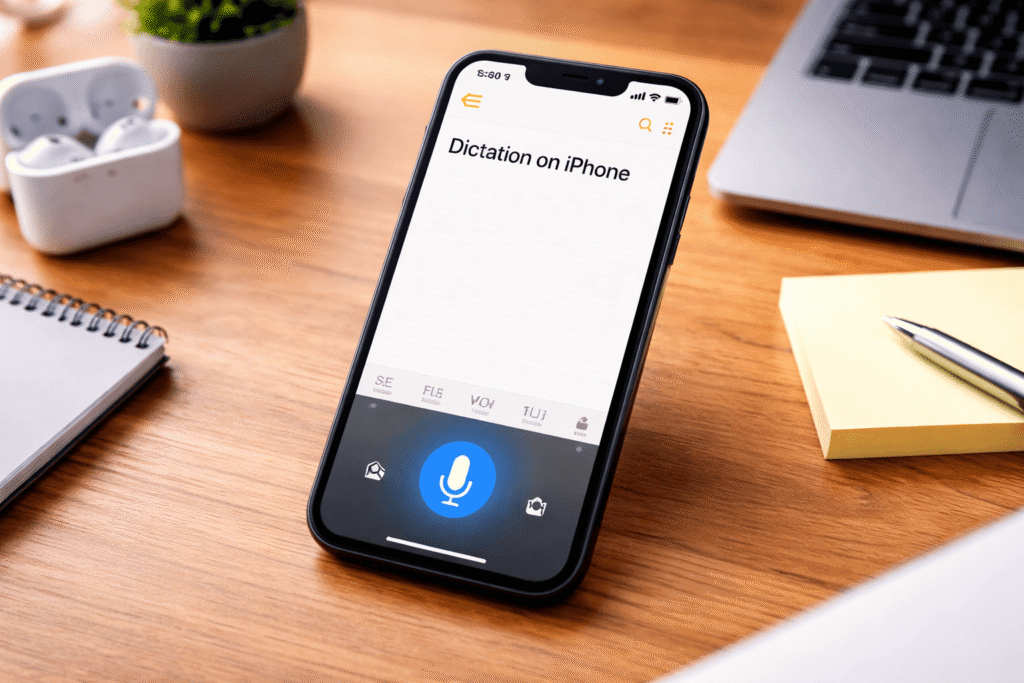
Typing on a small screen can be slow — but your iPhone has a faster way. Dictation on iPhone lets you turn your voice into text instantly, so you can write messages, notes, or even search the web just by speaking. It’s one of the most powerful yet underused accessibility and productivity tools built into iOS.
What Is Dictation on iPhone?
Dictation is a voice-to-text feature that converts your speech into written words anywhere you can type — including messages, emails, documents, and search bars. You can even combine typing and dictation, since the keyboard stays open while you speak.
For most languages, Dictation works offline, meaning your speech is processed directly on your iPhone — not sent to Apple servers. However, when using Dictation in a search box, your spoken words may be sent to your search provider (like Google or Bing) to process the query.
Note: Dictation availability and features vary by region and language. Check the official iOS Feature Availability page for updates.
Benefits of Using Dictation
- Save time: Speak instead of typing long messages or notes.
- Hands-free use: Ideal when you can’t type — for instance, while cooking or walking.
- Multilingual support: Works with multiple languages if you’ve added them to your keyboard settings.
- Accessible design: Helpful for users with mobility or vision limitations.
How to Turn On Dictation on iPhone
- Open the Settings app.
- Tap General, then select Keyboard.
- Toggle Enable Dictation on.
- Confirm by tapping Enable Dictation when prompted.
For details on how Apple protects your voice data, tap About Dictation & Privacy under the Dictation section, or visit the Apple Privacy website.
How to Use Dictation on iPhone
Once Dictation is on, you’re ready to start speaking.
- Tap in a text field where you want to type.
- Tap the microphone icon (Dictate button) on the keyboard.
- Start speaking clearly — your words will appear as text.
While dictating, you can also use voice commands to format and edit your text.
Common Voice Commands:
- Add punctuation: Say “comma,” “period,” or “exclamation point.”
- Add emoji: Say “smiley face emoji” or “heart emoji.”
- Start a new line: Say “new line” or “new paragraph.”
- Spell a word: Say “S-T-E-P-H-E-N” for clarity.
- Edit text: Say “select [word]” or “delete [phrase].”
- Undo or redo: Say “undo” or “redo.”
Tip: Dictation automatically adds punctuation in supported languages. To turn this off, go to Settings → General → Keyboard → Auto-Punctuation and disable it.
When finished, tap the Dictate button again or say “Stop dictation.” If you stop speaking for about 30 seconds, Dictation will automatically turn off.
How to Use Dictation in Multiple Languages
If you use multiple keyboards (like English, French, or Yoruba), Dictation automatically recognizes the active keyboard’s language. Just switch languages before speaking, and iPhone will adapt instantly.
How to Turn Off Dictation
- Go to Settings → General → Keyboard.
- Turn off Enable Dictation.
That’s it — your iPhone will stop listening for dictation commands.
Troubleshooting Dictation
If Dictation isn’t working:
- Make sure Siri & Dictation is enabled under Settings → Screen Time → Content & Privacy Restrictions.
- Check your microphone permissions and ensure nothing blocks your mic.
- Restart your iPhone if the issue persists.
Final Thoughts
Dictation is a small but powerful iPhone feature that can dramatically boost your productivity. Whether you’re replying to messages, jotting down ideas, or drafting an email, you can do it hands-free with precision and speed. Try it out, and you’ll likely find yourself typing less and talking more — efficiently.