
How to Use Google Lens in Chrome — And Why It’s a Game Changer for Web Search
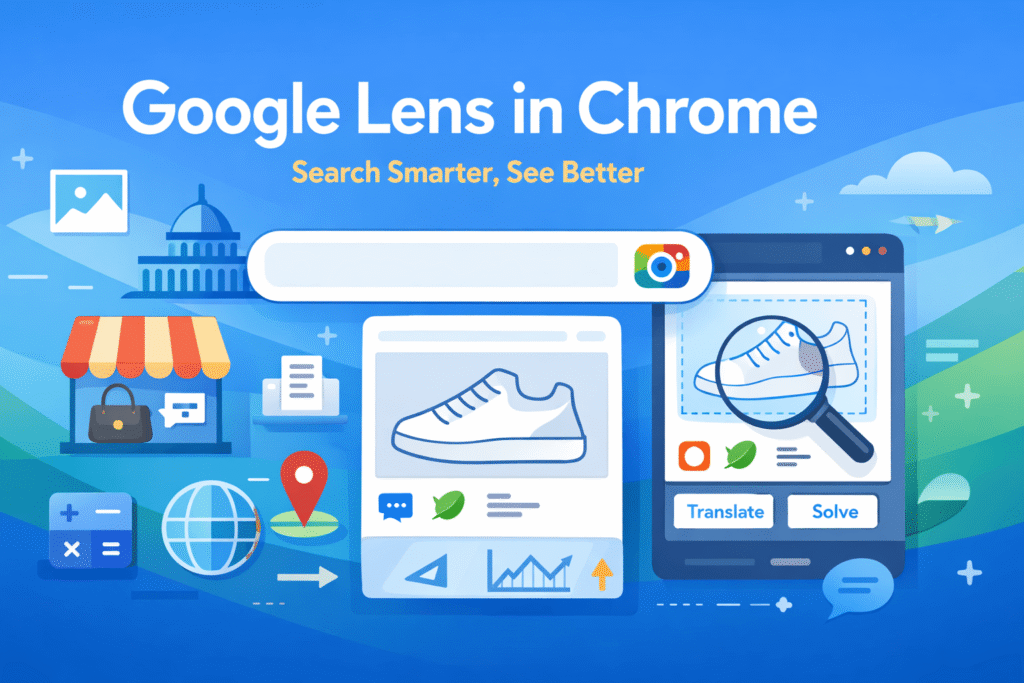
Searching the web has always been about words — typing queries and hoping the right results appear. But now, thanks to Google Lens, Chrome lets you search with what you see, not just what you can describe. Whether it’s an image, product, landmark, or even text inside a video, Google Lens turns your browser into a visual search engine.
What Is Google Lens and Why It’s a Big Deal
Searching the web used to mean typing words and hoping Google understood what you meant. Now, with Google Lens built into Chrome, you can search using visuals — anything you can see on your screen.
Google Lens is an AI-powered visual recognition tool that identifies objects, images, landmarks, and even text. Originally a mobile feature, it’s now fully integrated into the Google Chrome browser on desktop, making it easier than ever to use.
When you click inside the Chrome address bar, you’ll notice a camera icon — that’s Google Lens. With one click, you can start a visual search, no typing required.
Top Ways to Use Google Lens in Chrome
1. Shop Smarter with Visual Search
See a product online but don’t know its name?
Use Google Lens to highlight it. Chrome will instantly pull up similar products, prices, and stores that sell them.
It’s far more efficient than typing descriptions like “white sneakers with red logo.”
2. Identify Objects, Landmarks, and Artworks
Google Lens can identify landmarks, artworks, plants, pets, and people.
If you’re watching a video and spot a building or statue, Lens can tell you its name and where it’s located — directly in the browser.
3. Translate Text Instantly
Hover over any text — even inside an image or video — and Google Lens can translate it on the spot.
Whether you’re browsing a foreign website or studying online, this feature saves time and effort.
4. Solve Math Problems and Find Context
Google Lens now uses AI to solve equations, recognize graphs, and explain visuals.
It’s not just identifying — it’s understanding. Perfect for students and researchers who need quick visual analysis.
Step-by-Step: How to Use Google Lens in Chrome
Follow these steps to start using Google Lens right inside your Chrome browser:
- Open Chrome and visit any webpage.
- Click the address bar — the Google Lens camera icon will appear.
- Click the Lens icon to activate visual search.
- Select an image or area on the page by dragging your cursor to highlight it.
- View results in the right-hand panel — you’ll see image matches, links, and related info.
- Refine or expand your search using the search box above the Lens results.
- For text: hover, highlight, then copy or translate directly using the pop-up options.
Pro Tips to Get Better Results
- Be precise with your selection — it helps Lens identify the correct object.
- Combine Lens with keywords — refine searches in the results panel.
- Use it creatively — discover similar designs, art inspiration, or new product trends.
Why This Matters
Google Lens is transforming web browsing by merging AI, vision, and search.
It’s not just a convenience — it’s a powerful research and productivity tool. Whether you’re shopping, studying, or exploring the world, Lens helps you see and understand the web in a new way.
Final Thoughts
If you haven’t tried Google Lens in Chrome yet, now’s the time.
It’s more than just a search tool — it’s your window into smarter, AI-driven browsing. The next time you’re unsure about something you see online, don’t type. Click, select, and let Lens find it for you.
Final Thoughts: The Choice Is Ours
If you haven’t tried Google Lens in Chrome yet, now’s the time.
It’s more than just a search tool — it’s your window into smarter, AI-driven browsing. The next time you’re unsure about something you see online, don’t type. Click, select, and let Lens find it for you.