
The Hidden Microsoft Tool That Can Transform How You Use Windows
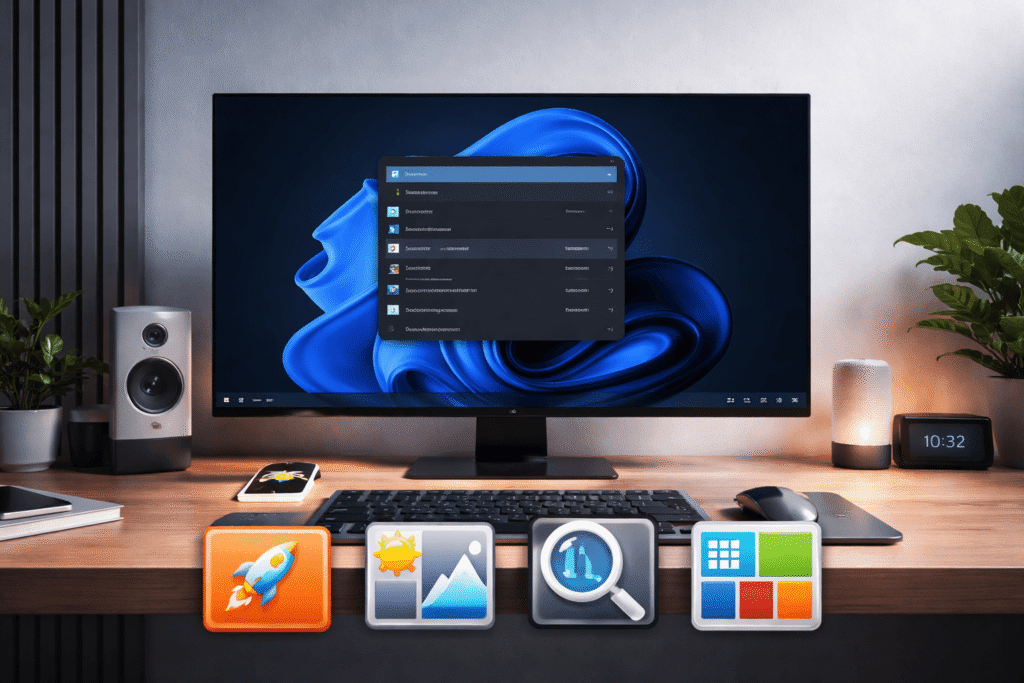
If you use Windows regularly, you’re probably leaving a lot of efficiency on the table—and you don’t even know it.
Despite all the improvements in Windows 11, some basic productivity features are still missing or poorly implemented. Simple actions like fast search, file preview, or automated dark mode often require extra steps or third-party apps.
That’s where Microsoft PowerToys comes in.
PowerToys is a free set of advanced utilities developed by Microsoft to enhance how you interact with Windows. It’s not just another tool—it’s a productivity layer that fills critical gaps in the operating system.
What Makes PowerToys Worth Using?
PowerToys is updated frequently and designed for people who want speed, control, and efficiency. Instead of changing how Windows works entirely, it improves what already exists.
Below are some of the most impactful tools and how they can upgrade your workflow.
1. Command Palette: Faster Than Windows Search
Windows Search is functional, but it’s slow and overloaded.
The Command Palette replaces it with a lightweight, keyboard-driven launcher. Think of it as a faster way to:
- Open apps instantly
- Search files without lag
- Switch between open windows
- Launch websites or folders using custom shortcuts
You can even create bookmarks for frequently used locations like Downloads or Screenshots, making repetitive actions nearly instant.
Bottom line: Less clicking, more doing.
2. Light Switch: Finally, Smart Dark Mode
Surprisingly, Windows still lacks a proper automatic dark mode.
The Light Switch utility fixes that by allowing you to:
- Toggle dark mode with a keyboard shortcut
- Schedule theme changes based on time
- Automatically switch based on sunset
This removes the need to manually adjust your display every day.
3. Peek: Instant File Preview
On macOS, you can preview files instantly using the spacebar. Windows doesn’t offer this by default.
Peek brings that exact functionality to Windows:
- Select any file and press Space
- Instantly preview images, documents, and more
- Navigate between files using arrow keys
No need to open full applications just to check a file.
4. Text Extractor: Copy Text From Anywhere
Extracting text from images is often slow and frustrating.
The Text Extractor tool uses OCR (Optical Character Recognition) to let you:
- Highlight any text on your screen
- Instantly copy it to your clipboard
- Avoid using slow or complex alternatives
Shortcut: Windows + Shift + T
This is especially useful for students, designers, and developers working with screenshots or PDFs.
5. Image Resizer: Batch Resize in Seconds
Resizing images manually is inefficient, especially in bulk.
With Image Resizer:
- Right-click one or multiple images
- Choose predefined or custom sizes
- Resize instantly without opening any software
It’s a simple feature—but one that saves a surprising amount of time.
6. Awake: Keep Your PC Running When It Matters
Your computer going to sleep mid-task is annoying—and sometimes costly.
Awake allows you to:
- Prevent your PC from sleeping temporarily
- Set custom durations (30 minutes, 1 hour, etc.)
- Keep processes running without changing system settings
Perfect for downloads, rendering, or long-running tasks.
7. FancyZones: Advanced Window Management
Windows has basic snapping features, but they’re limited.
FancyZones gives you full control over your workspace:
- Create custom layouts for your screen
- Assign specific zones for different apps
- Snap windows into place instantly
If you multitask heavily—writing, browsing, coding—this becomes essential.
Final Takeaway
PowerToys doesn’t just add features—it removes friction.
Instead of adapting to Windows’ limitations, you reshape the system to fit your workflow. The result is faster navigation, fewer interruptions, and a more controlled computing experience.
If you’re serious about productivity on Windows, not using PowerToys is a mistake.