
5 Powerful Apple Reminders Hacks to Instantly Boost Your Productivity Part 1
YouTube Music has grown into a solid choice for music lovers, especially those who enjoy music videos, remixes, and user-generated content. But out of the box, most users barely scratch the surface of what it can actually do.
If you’re using the platform casually, you’re leaving a lot of value on the table. These first five hacks focus on setup, control, and personalization—the foundation of a better listening experience.
The default way most people use Reminders is reactive: write tasks, get notified, check them off. That works—but it’s inefficient. The real value comes from turning your task list into a system that thinks ahead for you.
1. Trigger Reminders When You Message Specific People
Forgetting to tell someone something isn’t a memory problem—it’s a timing problem.
The “When Messaging” feature solves this by attaching a task to a specific contact. The next time you chat with them, the reminder appears automatically.
Instead of trying to remember later, the app surfaces the task at the exact moment it becomes relevant. That’s how smart systems work—context over memory.
2. Turn Your Lists Into a Visual Workflow (Kanban Style)
Linear lists break down when tasks have multiple stages.
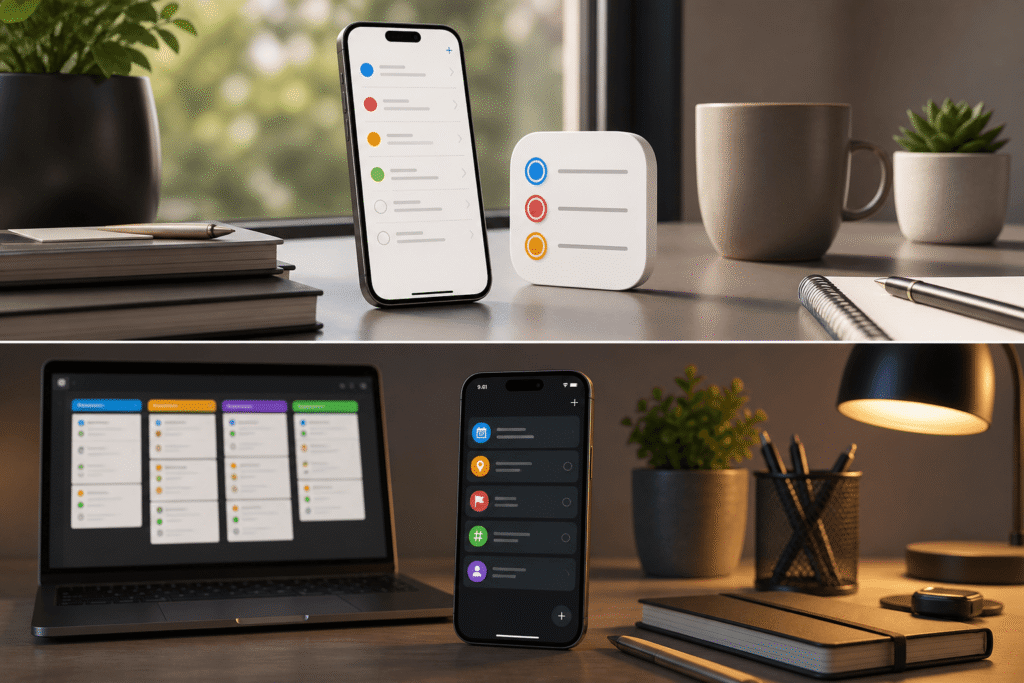
Using the column (Kanban) view, you can transform a simple list into a workflow system. Each section becomes a stage—like:
- Idea
- In Progress
- Review
- Completed
Now you’re not just tracking tasks—you’re tracking progress. This is especially useful for content creation, project management, or anything with multiple steps.
3. See Your Tasks Inside Your Calendar
Separating tasks from your schedule is a mistake.
When reminders include a date and time, they automatically appear in the Calendar app. This gives you a unified view of:
- What you plan to do (tasks)
- What you must attend (events)
That alignment eliminates overbooking and forces realistic planning.
4. Use Smart Grocery Lists That Organize Themselves
Most shopping lists are chaotic—and that wastes time.
Reminders can automatically sort grocery items into categories like produce, dairy, or meat. Instead of jumping between aisles, your list follows the natural layout of a store.
It’s a small change, but it removes friction from a recurring task—which is exactly where optimization matters most.
5. Set “Urgent” Alerts for Critical Tasks
Standard notifications are easy to ignore. That’s a design flaw if the task actually matters.
The Urgent setting turns a reminder into a full-screen alert—similar to an alarm. It forces visibility and demands action.
Use this sparingly. If everything is urgent, nothing is. But for truly critical tasks, this ensures zero misses.