
How to Disable Videos on Spotify (And Why You Might Want To)
Music streaming should be simple: press play and listen. But over time, Spotify has evolved beyond just audio—introducing music videos, looping visuals, and vertical clips. While these features aim to enhance engagement, not everyone finds them useful.
If your goal is to focus purely on music, there’s good news: Spotify now allows users to disable most in-app video content, giving you a cleaner, distraction-free listening experience.
Why Turn Off Videos in Spotify?
Before jumping into the steps, it’s important to understand why this feature matters:
- Less distraction – No unnecessary visuals interrupting your listening flow
- Reduced data usage – Videos consume significantly more data than audio
- Better battery life – Disabling video reduces background processing
- Cleaner interface – A simpler, music-first experience
For users who treat Spotify strictly as an audio platform, this update is a practical improvement—not just a cosmetic one.
What Videos Can You Actually Disable?
Spotify now gives you control over multiple types of video content:
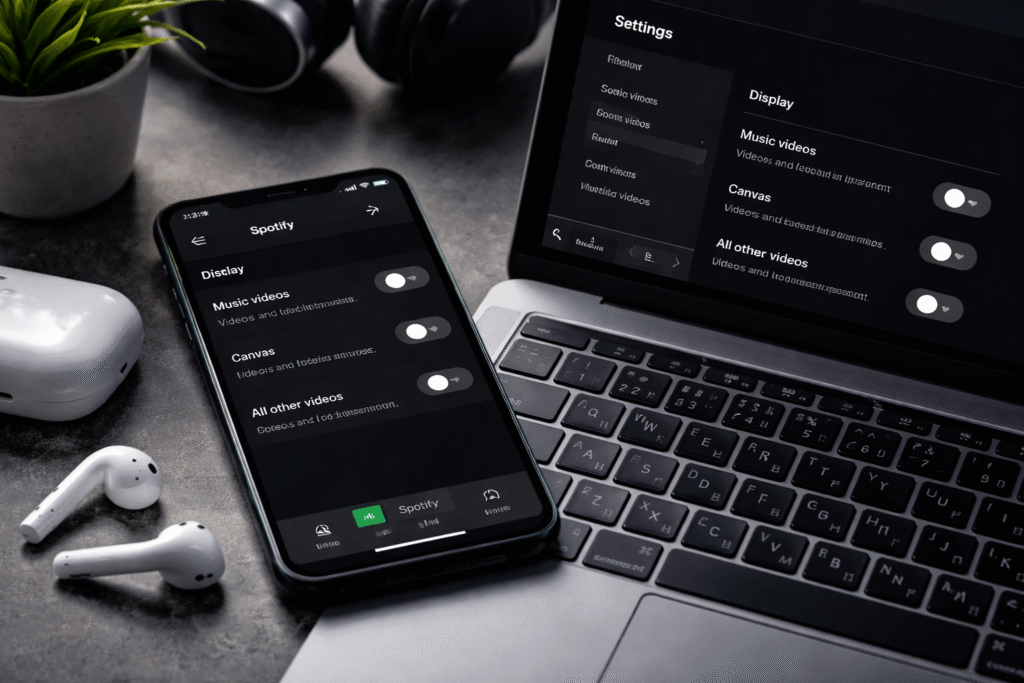
- Music Videos – Official videos added to songs
- Canvas – Short looping visuals that play during tracks
- Other Videos – Includes vertical clips uploaded by artists
This is a step beyond the older “Canvas-only” control, which was previously the only video setting available.
Step-by-Step: How to Disable Videos on Mobile
Follow these steps on your phone:
- Open Spotify
- Tap your profile icon (top-left corner)
- Go to Settings and Privacy
- Select Content and Display
- Locate the Videos and Canvas section
- Turn off:
- Music Videos
- Canvas
- All Other Videos
Once disabled, Spotify shifts closer to a pure audio experience.
How to Disable Videos on Desktop
If you’re using Spotify on a computer:
- Click your profile icon
- Go to Settings
- Navigate to Display
- Toggle off available video-related options
Managing Video Settings for Family Accounts
If you manage a Spotify Premium family plan, you can apply these settings to other users:
- Open Spotify and tap your profile icon
- Go to Your Premium → Manage Plan
- Select a user profile
- Disable video options under Videos and Canvas
This is useful for parents or anyone who wants to standardize the experience across multiple accounts.
Important Limitation You Should Know
Here’s the part most people miss:
You cannot disable video ads.
Even after turning off all video settings, some ads may still include visual elements. That’s because ad delivery operates independently from user-controlled content settings.
What This Means for the Future of Spotify
This update signals something important: Spotify is giving users more control over how they consume content. While the platform continues expanding into podcasts, audiobooks, and video, features like this show there’s still demand for a focused, music-only experience.
For now, disabling videos is the closest you can get to returning Spotify to its original purpose—just music.