
Seven Samsung Galaxy Settings You Don’t Get on Other Android Phones
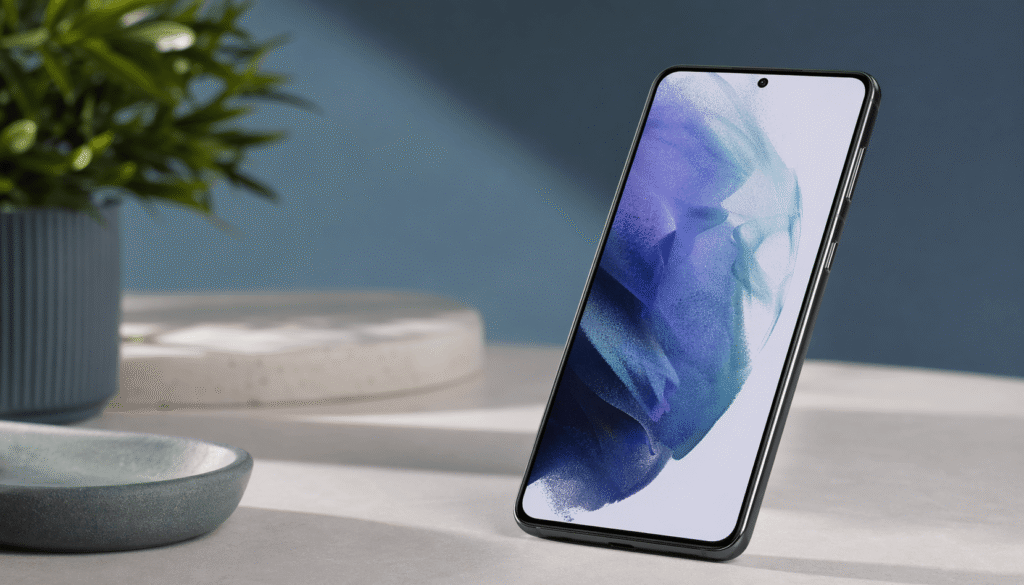
Most people assume all Android phones feel the same. That’s wrong. A Samsung One UI device is not just “Android with a different look”—it’s a heavily customized system with controls you simply won’t find on stock Android or devices from Google or Nothing.
If you’re not using these features, you’re leaving performance, speed, and usability on the table. Here’s a cleaner, more practical breakdown of the most useful Galaxy-only settings—and how they actually improve your day-to-day use.
1. Turn Your Phone Into a Multitasking Machine (Multi-Window Mode)
Most Android users still jump between apps like it’s 2015. That’s inefficient.
Samsung’s multi-window feature lets you run two apps side-by-side, turning your phone into something closer to a mini desktop.
Why it matters:
You can watch a tutorial while taking notes, reply to messages while browsing, or compare information without constant switching.
How to use it:
- Open recent apps
- Tap an app icon
- Select Split screen view
- Choose your second app
Once you start using this properly, going back to single-app use feels slow.
2. Edge Panels: Your Shortcut System on Steroids
The Edge Panel is one of the most underrated features on Galaxy phones.
Think of it as a floating control center that gives instant access to:
- Apps
- Contacts
- Tools
- Clipboard
- Tasks
Why it matters:
It reduces friction. Instead of hunting through your phone, everything you use frequently is one swipe away.
Where to find it:
Settings → Display → Edge Panels
Customize it properly, and it becomes one of the fastest navigation systems on any phone.
3. Remap the Side Button (Stop Accepting Defaults)
Out of the box, the side button behavior is… average. Samsung lets you fix that.
Why it matters:
You can turn a useless button press into a high-speed shortcut.
What you can do:
- Double press → Launch any app (not just the camera)
- Long press → Power menu or switch assistants
Where to change it:
Settings → Advanced features → Side button
If you use your phone heavily, this small tweak saves time every single day.
4. Fine-Tune Your Display Like a Pro
Most phones give you basic display options. Samsung gives you control.
You can:
- Switch between Vivid and Natural modes
- Adjust white balance
- Manually tweak RGB (red, green, blue) levels
Why it matters:
Better color accuracy reduces eye strain and improves media quality. If your screen looks “off,” this is why.
Where to find it:
Settings → Display → Screen mode → Advanced settings
This is one of those features you ignore—until you use it properly.
5. RAM Plus: Extra Memory When You Need It
Samsung’s RAM Plus feature uses part of your storage as virtual RAM.
Why it matters:
It helps keep more apps open and improves switching speed—especially on mid-range devices.
Reality check:
It’s not magic. It won’t turn a slow phone into a fast one, but it does smooth out multitasking.
Where to adjust it:
Settings → Device care → Memory → RAM Plus
Use it wisely—more isn’t always better.
6. Intelligent Wi-Fi: Smarter Connectivity (Not Just Marketing)
Samsung’s “Intelligent Wi-Fi” isn’t just a buzzword—it actively manages your connection.
What it does:
- Prioritizes low-latency tasks (like video calls)
- Switches to mobile data if Wi-Fi is weak
- Optimizes connection stability
Why it matters:
You get fewer drops, smoother calls, and better overall performance without manual switching.
Where to find it:
Settings → Connections → Wi-Fi → (menu) → Intelligent Wi-Fi
There’s even a hidden diagnostic tool in there if you dig deeper.
7. Auto Restart: The Simplest Performance Fix People Ignore
Phones slow down over time—it’s inevitable. Temporary files build up, memory gets cluttered.
Samsung solves this with automatic restarts.
Why it matters:
A scheduled restart clears memory and keeps your device running smoothly without you doing anything.
How it works:
- Only restarts when you’re not using the phone
- Requires sufficient battery
- Won’t interrupt active use
Where to enable it:
Settings → Device care → Auto optimization → Auto restart
It’s simple, but effective. Most people never enable it—and then complain about lag.
Final Take
If you’re using a Samsung Galaxy device like a basic Android phone, you’re using it wrong.
Samsung One UI is designed to give you more control, speed, and flexibility—but only if you actually explore it. These settings aren’t hidden by accident; they’re just ignored.
Set them up once, and your phone becomes noticeably faster, smarter, and easier to use.