
This Android Setting Helps You Take Control of App Permissions (And Most People Ignore It)
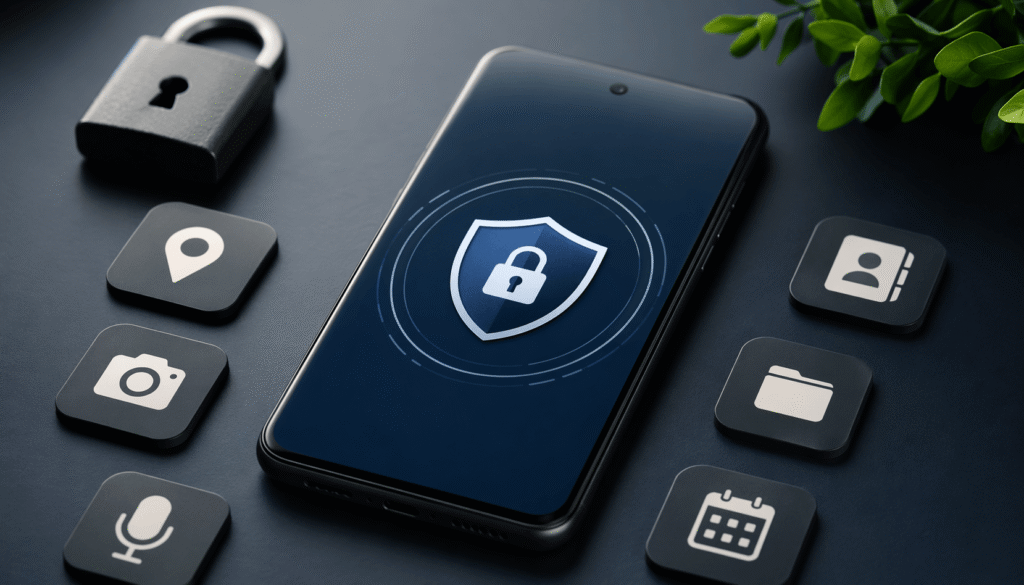
Most people install apps and immediately tap “Allow” without thinking twice. That habit slowly turns your phone into a device where dozens of apps may have access to your camera, microphone, location, and even deeper system controls.
The problem isn’t just privacy—it’s control. Many apps keep permissions they no longer need, and some request more access than necessary just to function.
Android actually gives you tools to manage all of this, but they are split into two areas that most users never fully check.
1. Start With the Main Permission Dashboard (Your First Line of Defense)
Android has a central place where you can see what each app is allowed to access.
You’ll find it here:
Settings → Security & Privacy → Privacy → Permission Manager
From this section, you can review apps that have access to sensitive features like:
- Camera
- Microphone
- Location
- Contacts
- Call logs
- Files and media
- Calendar
What makes this powerful is control over how access works:
- Allow all the time
- Allow only while using the app
- Don’t allow
- Ask every time
If you haven’t checked this in months, assume your permissions are outdated.
2. The Hidden Layer Most People Miss: Special App Access
This is where things get more serious—and more overlooked.
Beyond normal permissions, Android has a second category called Special App Access. These permissions are deeper system-level privileges that can affect how your phone behaves overall.
You’ll find it here:
Settings → Apps → Special App Access
(sometimes hidden under a menu in the top corner)
Inside this section, apps can be granted powerful access such as:
- Display over other apps (pop-ups, overlays)
- Modify system settings
- Usage access (tracking how you use apps)
- Access to all files and folders
- Picture-in-picture control
These permissions are not always dangerous, but they are high-impact.
For example:
- YouTube or TikTok uses picture-in-picture so videos continue while you switch apps.
- Caller ID or chat heads may use “display over other apps.”
So yes, some of these are useful—but not every app needs them.
3. Why This Matters More Than Most People Realize
The real issue isn’t that Android permissions exist—it’s that users rarely audit them.
Over time, you may have:
- Granted access without reading prompts
- Installed apps you no longer use but still have permissions
- Allowed system-level access without understanding the risk
In worst-case scenarios, misuse of special permissions can lead to:
- Screen overlay attacks (fake login screens)
- Hidden data collection through notifications or usage tracking
- Unwanted system changes
Even apps from official stores are not automatically “safe forever”—permissions still matter.
4. How to Properly Audit Your Android Permissions
Here’s a simple, practical approach:
Step 1: Check normal permissions
Go to Permission Manager and review:
- Location
- Camera
- Microphone
Remove anything unnecessary or outdated.
Step 2: Review special permissions
Go to Special App Access and ask:
- Does this app really need this level of access?
- Do I still use this app?
- Can it function without this permission?
If the answer is “no” or “I’m not sure,” revoke it.
Step 3: Be stricter with unknown apps
Apps installed outside the Play Store deserve extra caution, but don’t assume Play Store apps are
Final Thought
Most Android users focus on storage, battery, and performance—but ignore permissions, which actually control how apps interact with your entire device.
If you want better privacy and more control, this is one of the most effective settings you can review in under 10 minutes.
No advanced tools needed—just awareness and a habit of checking what apps are allowed to do on your phone.